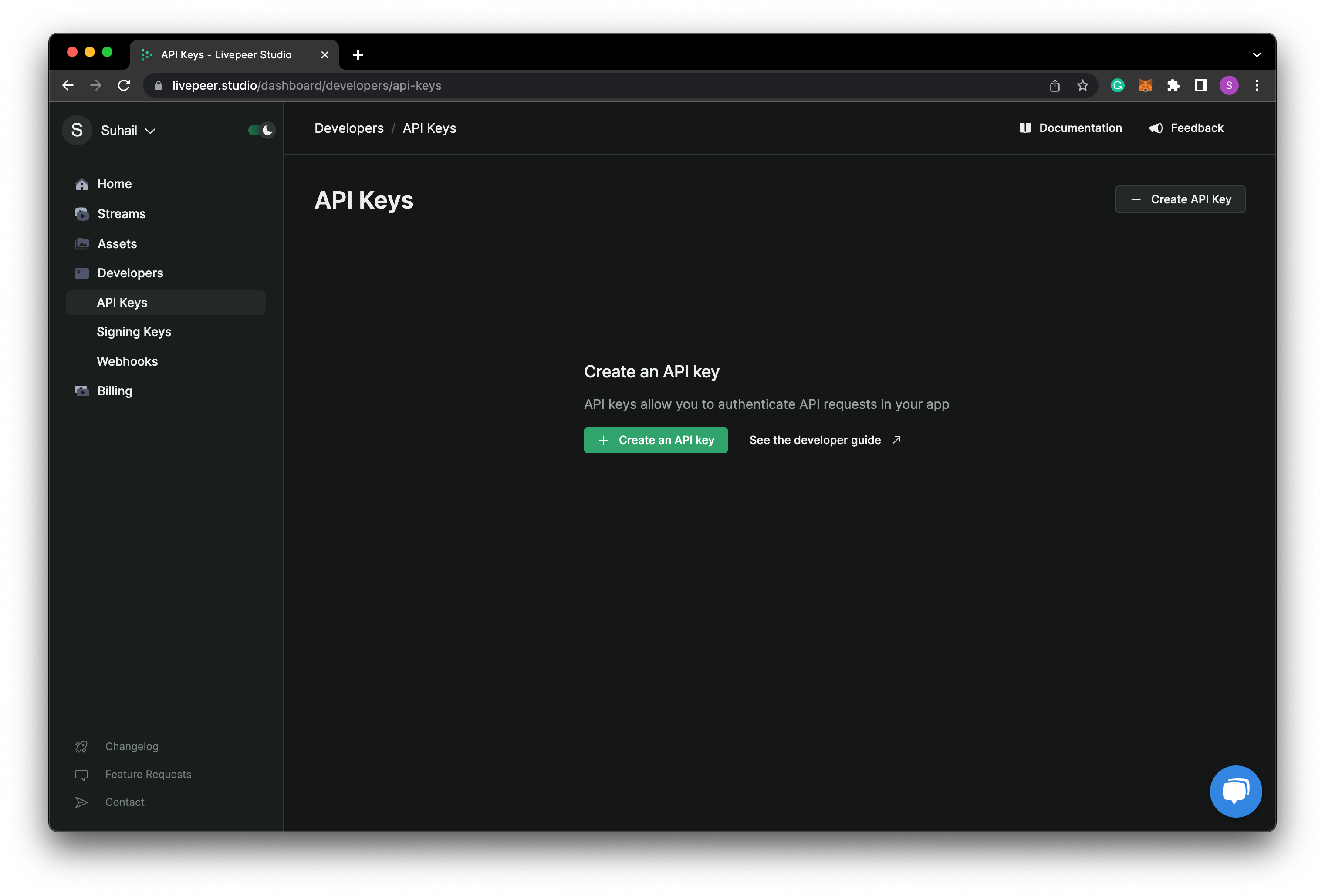
First, go to Livepeer Studio, if you haven’t already,
and create an account. Once you’ve created an account, you’ll be able to create
an API key by clicking on the “Create API Key” button on Developers page.
If you are planning on making API requests from the frontend in your
application, we recommend creating a “CORS-enabled” API
key. This is a limited, public API
key which has a security model that allows for requests from the frontend. We recommend creating separate API keys for your development and production
environments. This will allow you to easily manage your API keys and revoke
them, if needed.
Install the SDK
npm install @livepeer/react
Set up the SDK
Next, create a new React client and wrap
the app with LivepeerConfig.
import { createReactClient, studioProvider } from "@livepeer/react";

const client = createReactClient({
  provider: studioProvider({ apiKey: "yourStudioApiKey" }),
});
import {
  LivepeerConfig,
  createReactClient,
  studioProvider,
} from "@livepeer/react";

const client = createReactClient({
  provider: studioProvider({ apiKey: "yourStudioApiKey" }),
});

function App() {
  return (
    <LivepeerConfig client={client}>
      <SomeComponent />
    </LivepeerConfig>
  );
}
Upload a video
Now that our providers are set up, we set up file uploads with React Dropzone, a
library for easily creating HTML5-compliant drag and drop zones for files (you
can use another solution for file uploads):
import { useCreateAsset } from "@livepeer/react";

import { useCallback, useState } from "react";
import { useDropzone } from "react-dropzone";

export const CreateAndViewAsset = () => {
  const [video, setVideo] = useState<File | undefined>();
  const {
    mutate: createAsset,
    data: asset,
    status,
    progress,
    error,
  } = useCreateAsset(
    video
      ? {
          sources: [{ name: video.name, file: video }] as const,
        }
      : null
  );

  const onDrop = useCallback(async (acceptedFiles: File[]) => {
    if (acceptedFiles && acceptedFiles.length > 0 && acceptedFiles?.[0]) {
      setVideo(acceptedFiles[0]);
    }
  }, []);

  const { getRootProps, getInputProps } = useDropzone({
    accept: {
      "video/*": ["*.mp4"],
    },
    maxFiles: 1,
    onDrop,
  });

  const progressFormatted = useMemo(
    () =>
      progress?.[0].phase === "failed"
        ? "Failed to process video."
        : progress?.[0].phase === "waiting"
        ? "Waiting"
        : progress?.[0].phase === "uploading"
        ? `Uploading: ${Math.round(progress?.[0]?.progress * 100)}%`
        : progress?.[0].phase === "processing"
        ? `Processing: ${Math.round(progress?.[0].progress * 100)}%`
        : null,
    [progress]
  );

  return (
    <>
      <div {...getRootProps()}>
        <input {...getInputProps()} />
        <p>Drag and drop or browse files</p>
      </div>

      {createError?.message && <p>{createError.message}</p>}

      {video ? <p>{video.name}</p> : <p>Select a video file to upload.</p>}
      {progressFormatted && <p>{progressFormatted}</p>}

      <button
        onClick={() => {
          createAsset?.();
        }}
        disabled={!createAsset || createStatus === "loading"}
      >
        Upload
      </button>
    </>
  );
};
Play the asset
We can now use Player component from the SDK to play the asset:
import { Player } from "@livepeer/react";

const playbackId = "f5eese9wwl88k4g8";

export const DemoPlayer = () => {
  return (
    <Player
      title="Waterfalls"
      playbackId={playbackId}
      showPipButton
      showTitle={false}
      aspectRatio="16to9"
      controls={{
        autohide: 3000,
      }}
      theme={{
        borderStyles: { containerBorderStyle: "hidden" },
        radii: { containerBorderRadius: "10px" },
      }}
    />
  );
};
Start building
Check out the SDKs and
API Reference pages to learn more about
how to use the SDKs and API to build your application.
You can also refer to the Guides section for more
in-depth tutorials on how to use the SDKs and API to build specific
applications.
Don’t know where to start? Check out these four tutorials: